
How to Review and Maintain Content
This guide explains how to find content that needs attention and take action on it.
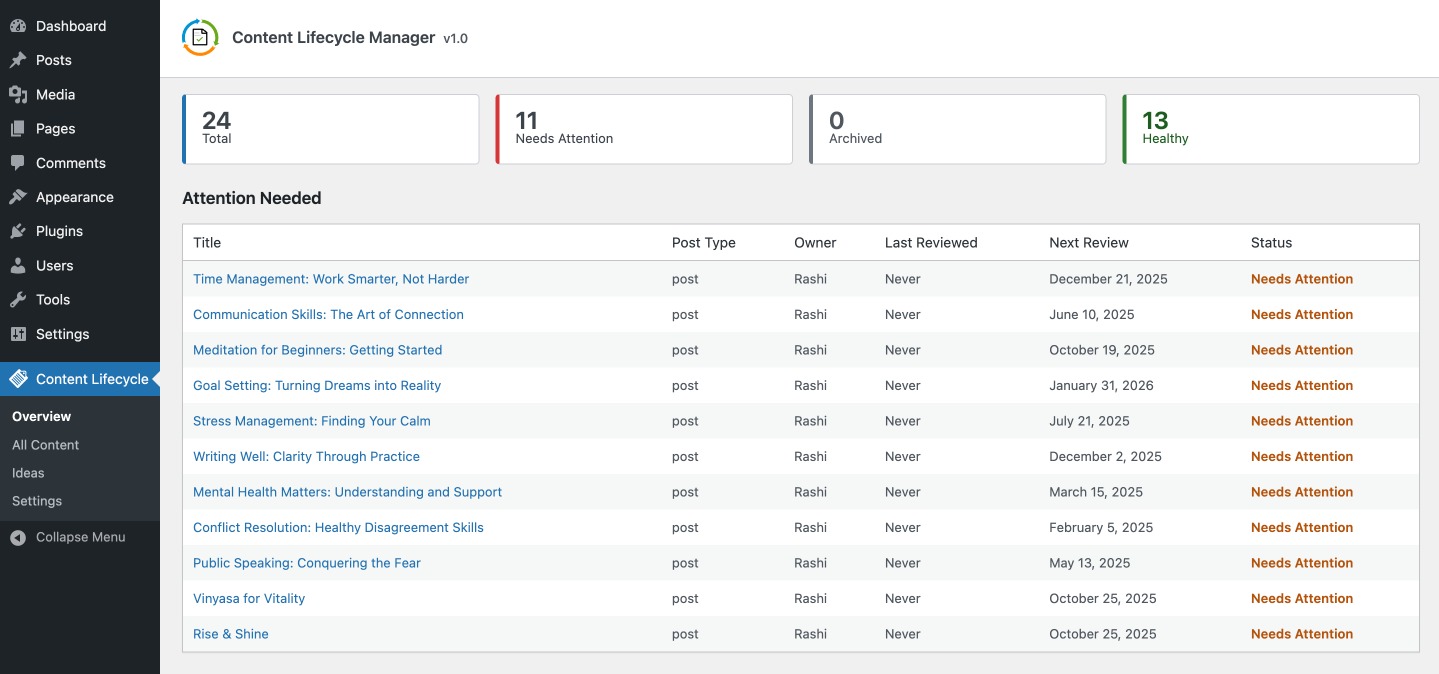
Use the Overview Screen
Go to:
Content Lifecycle > Overview
The Overview screen gives you a quick summary of content health and a table of content that needs attention first.
Clicking a summary card takes you to the All Content screen with the relevant tab or filter applied.
Use the All Content Screen
Go to:
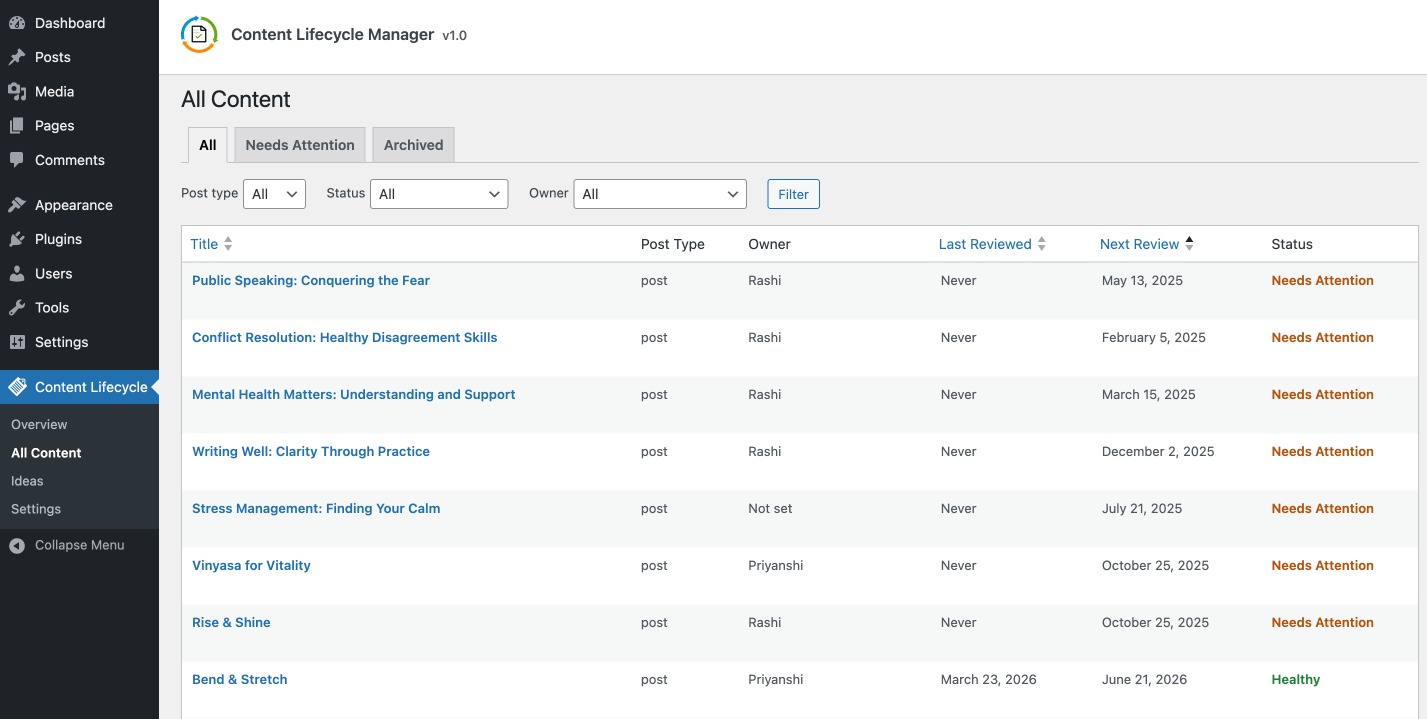
Content Lifecycle > All Content
This is the main working area for reviewing content in detail.
You can:
- switch between
All,Needs Attention, andArchived - filter by post type
- filter by owner
- filter by status
- sort by title, last reviewed, or next review
Understand the Statuses
Content can appear as:
HealthyNeeds AttentionArchived
In most cases:
Needs Attentionmeans the next review date is missing or overdueHealthymeans the next review date is still in the futureArchivedmeans the content has been removed from the active review queue
Use the Maintenance Action on a Table Row
From the All Content screen, click the maintenance action for a row to open the maintenance popup.
From there you can:
- change the owner
- mark the content as reviewed
- snooze the next review
- archive or unarchive the content
What Each Maintenance Action Does
Mark as Reviewed
Use this after checking the content and confirming it is current.
This updates:
Last ReviewedNext Review
Snooze Review
Use this when the content does not need work right now, but should be reviewed again later.
You can snooze by:
- a preset duration
- a custom future date
Archive Content
Use this when the content should no longer remain in the active maintenance queue.
Archived content moves to the Archived tab.
